How to Turn PDF Bank Statements into Excel Step by Step guide 2026
Introduction
Okay, I'm going to be honest with you.
My friend Rahul took 3 hours last month to manually key his bank transactions into an Excel sheet. Three whole hours. He spent hours simply reading the numbers on a PDF, one by one, hoping that he did not type anything wrong.
Sound goods?
This guide is designed to help you if you’ve ever tried to edit a PDF bank statement and found that it wasn’t possible.
In the next 8 minutes, I'll show you exactly how you can convert your bank statement PDF into Excel, no technical knowledge, no costly software, nothing complex.
Why can't you simply copy and paste PDFs?
Good question. You can try but here's what happens:
Once you put that information in Excel, it becomes a mess. Dates fall under the misplaced column. Numbers look like simple text. The balance numbers are not working. It's a nightmare.
It is a fact that PDF files are not designed to be edited but rather read, which can lead to frustration when trying to manipulate data for analysis or reporting purposes. Imagine a PDF as a picture of your data, and it looks great, but you cannot actually do anything useful with it.
Excel, in its turn, is a working tool. You can:
Filter transactions by date or size.
Prepare monthly expense diagrams.
Ready data to file tax returns.
Connect with QuickBooks, Tally, or any accounting software.
Share clean and arrange reports with your bank manager or CA.
So yes converting is 100% worth it. This process can save you much more time and money than you might expect.
To begin with, let's discuss how to check what kind of PDF you have.
Before we go into methods, lets spend 10 seconds checking your PDF type. This matters.
Attempt to highlight a word or a number in your PDF.
✅ In case it is highlighted, You have a digital PDF (downloaded on the site of your bank and bank mobile app). Easy to convert. Follow either Method 1 or 2 below.
❌ When nothing is highlighted, then you have a scanned PDF (a photo/scan of a paper statement). Method 3 (OCR) will be required.
🔒 When it requests a password You have an encrypted PDF. You will need to unlock it initially; the password most commonly used by Indian banks is either your date of birth or your mobile number.
Got it? Good. Let us choose your approach.
Method 1: Online Bank Statement Converter (Easiest 2 Minutes)
This is sincerely the quickest route. No excel tricks, no software downloading. Simply upload and download.
Steps
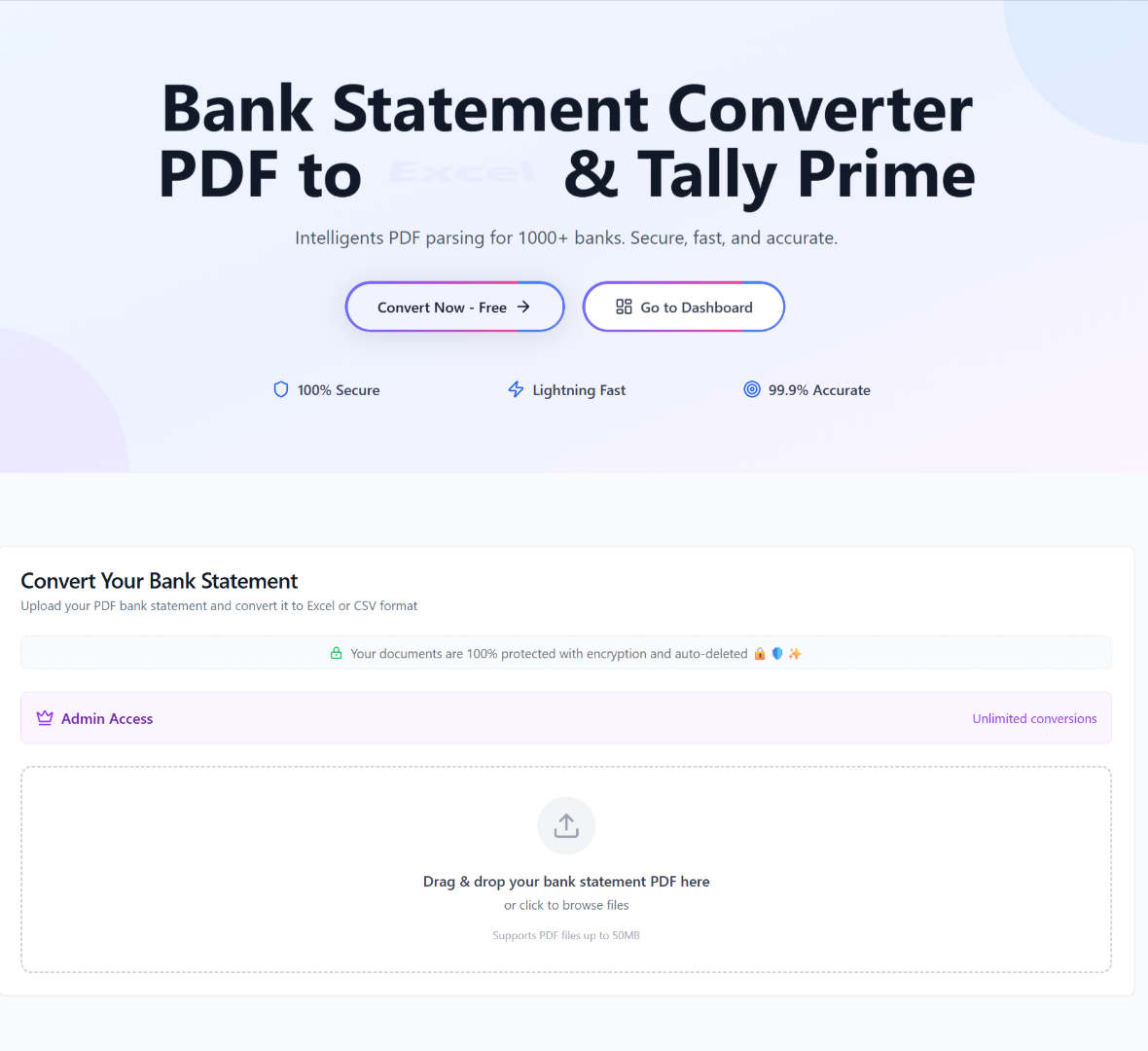
Step 1: Visit bankstatementmagic.com, our free bank statement converter.
Step 2: Press the button "upload PDF" and choose the file with your bank statement on your phone or your computer.
Step 3: Automatically the software gives your output format Excel (.xlsx) and TallyPrime to open it in Microsoft Excel or CSV to upload it to accounting software.
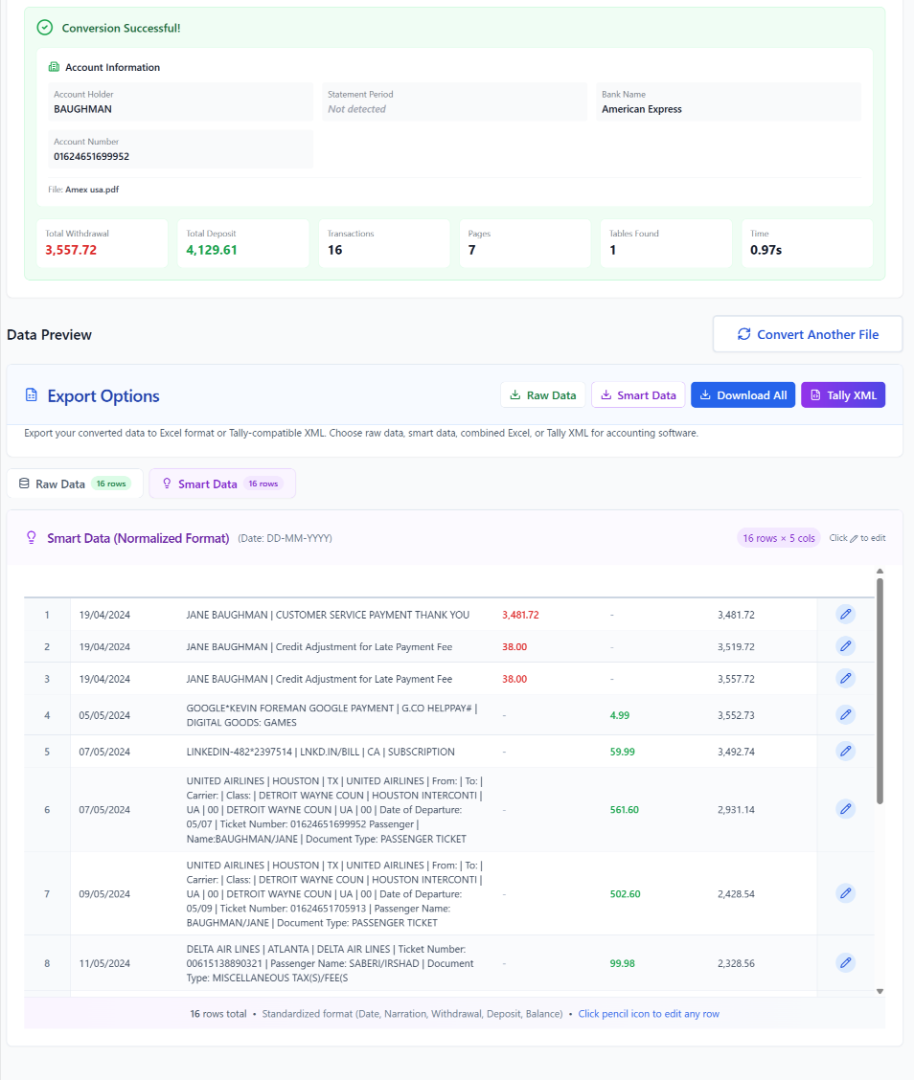
Step 4: Click on the raw data and smart data tab. The file is processed, and you can edit any transaction by clicking the pencil button.
Step 5: Click on the Download button and open your file in Excel. Your transactions will be shown in a smart data format and a clean and organized way in clean columns Date, Description, Debit, Credit, Balance.
That's it. Done.
Pro tip: Our tool supports all significant global all banks SBI, HDFC, ICICI, Axis, PNB, Kotak, AMEX, CHASE, HSBC and 1,000 more banks across all countries. No signup required.
Method 2: Import PDF (Digital PDFs) using the Built-In PDF Import to Excel
Steps
Step 1: Open Excel. Select the top tab, which is Data.
Step 2: Click on Get Data - then, From File - then, From PDF.
Step 3: Locate your PDF bank statement on your computer and select "Import.
Step 4: It will open a window known as Power Query. Your statement has been broken down into tables on the left side. Click on the one that appears like your transactions.
Step 5: Preview the data. When it appears good, then click on the bottom on Load. The data will automatically be drawn into a new sheet in Excel.
Step 6: Clean up on any additional rows (such as header/footer text) and you are ready!
Caution: This process only applies to digital PDFs - the ones that you have downloaded on the net banking portal of your bank. In case you have a PDF that has been scanned, proceed to Method 3.
Method 3: OCR conversion of a Scanned Bank Statement (Image PDFs)
OCR is a stands for the Optical Character Recognition - in simple words it is a technology that reads the text in an image.
Steps
Step 1: Store your scanned PDF on your computer or phone.
Step 2: Go to an OCR converter - there are web converters, such as PDFGear, Adobe Acrobat Online, or our converter at Bank Statement Magic which all accept OCR conversion.
Step 3: Upload the scanned PDF file.
Step 4: The tool will automatically identify the text, numbers and tables in the image.
Step 5: Excel/csv and Tally prime formate download the result.
Step 6: Open in Excel and conduct a cursory check (more on this below).
Tips to improve the results:
Please ensure that your scanned PDF is clear and not blurred.
Sharp scan = better conversion.
Re-scan at a higher resolution (300 DPI or more).
How to Clean Up Your Excel File: After Converting
The data will usually emerge clean most of the times. However, there are minor problems to correct occasionally.
Checklist
Fix incorrect-looking dates.
Fix amounts stored in text.
Remove blank rows.
Cross-check your totals.
Add column headers where none exist.
Ensure you label it well; Date | Description| Debit| Credit| Balance.
5 Things to Never Forget When Converting
Never use a screenshot or printout scan of the original PDF that you received in a bank account.
Please verify the balance once more; your Excel closing balance should align with your PDF.
Use a secure tool ensure the converter that you are using does not save your information. Bank statements are sensitive.
Do not use random free converters to upload; use converters that have a privacy policy.
Copy the original PDF file. Always save the original first, and then you can convert anything.
Frequently Asked Questions
Q: Does it allow converting PDF bank statements into Excel?
Yes! It is a free tool on Bank Statement Magic. There is no need to create an account, provide a credit card, or worry about hidden fees.
Q: To what extent is the conversion correct?
Currently, AI-based converters have an accuracy of 99%+ on clean digital PDFs. The scanning of PDFs may occasionally contain small mistakes, and this is the reason why we suggest the above clean-up steps.
Q: Is it possible to convert a bank statement that is secured with a password?
Yes. The PDF password of most banks in India is your date of birth (DD/MM/YYYY) or registered mobile number. Simply type it in when required and the converter will do the rest.
Q: SBI, HDFC, ICICI statements?
Absolutely. We support all the major banks of India such as SBI, HDFC, ICICI, Axis, PNB, Kotak and Yes Bank, among others.
Q: Is it possible to convert several statements simultaneously?
Yes - take advantage of the batch upload tool to process a number of months of statements at the same time. Perfect CA offices or businesses.
Q: Will the conversion of the PDF corrupt my data?
You need a good tool. The entire concept of quality converter is that you do not have to alter a single number to save your very own data, dates, amounts, descriptions.

Written by
sid
Hi, I am an investment banker and CA by profession with 15 years' experience.